Code layers: prototype behavior before visual polish
Figma opened code layers in open beta on 15 October 2026. Use a small prototype to compare behavior, empty and error states, and design alternatives before polishing the interface.
Treat the beta as a test surface
Figma announced code layers in open beta on 15 October 2026. The feature places an interactive, code-backed prototype on a Figma Design canvas so a team can compare versions alongside the surrounding design. Figma documents starting from a blank layer, selected frames, a webpage, or imported code. Those are product descriptions, not evidence that the feature improves every workflow. Ask a smaller question: what behavior is hard to understand from static frames, and what decision could a working example clarify?
Choose one uncertainty before opening the tool. For example: when someone removes the last filter, can they tell why the list changed and how to restore it? State the action and visible consequence. This keeps the exercise focused on a design decision instead of a general product demonstration.
Build the smallest useful flow
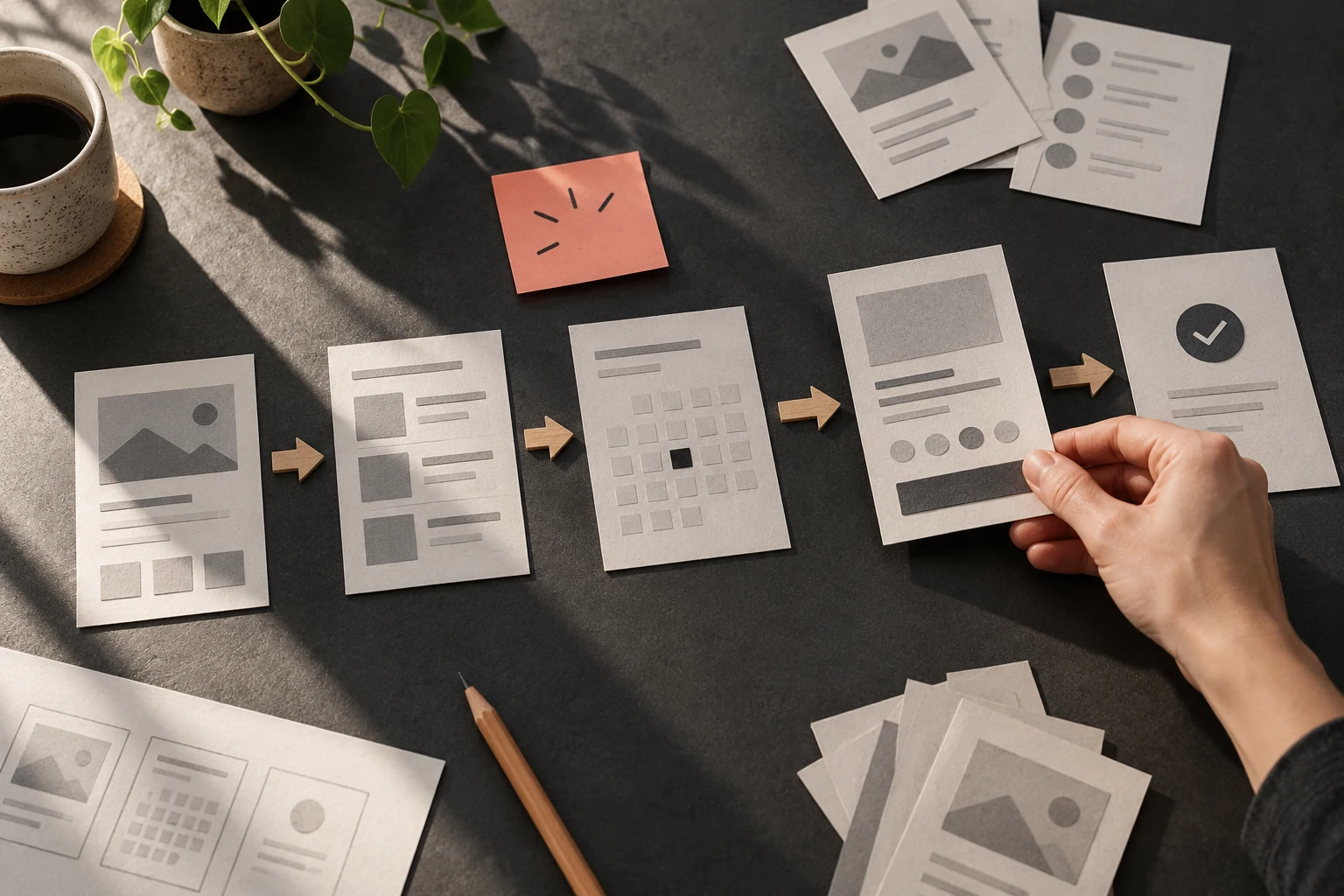
Start with the screen sequence that already explains the task. Figma says a selected design frame can become a code layer; the help page also describes creating one from scratch or importing code. Include only the states needed to answer your question: the ordinary route, one empty or loading state, and an interruption such as an unavailable result. If an agent generates or edits the prototype, review the language and transitions as design choices rather than accepting them because the screen runs.
Keep a static reference beside the interactive version. A running example reveals state changes; a still frame makes hierarchy and spacing easier to compare. If you make two variants, change one decision at a time, such as whether a filter removes itself or remains visible with a separate clear action. Label each version with its question.
Inspect transitions and recovery
Play the prototype and note the trigger, visible response, next action, and any unexplained change. Test a slow or unsuccessful outcome as well as the ideal path: does loading explain what is happening, can an error be corrected, and does an empty state distinguish “nothing matches” from “nothing has been added”? These questions expose gaps; they do not establish how often a situation occurs in a real service.
Compare each state with its static frame. Look for missing labels, moved controls, or details that only appear after interaction. Check a narrow viewport and relevant text size, and try keyboard input when a control should support it. Record behavior the prototype does not simulate. A polished preview is not usability evidence.
Make comparison useful to collaborators
Place versions side by side and ask a collaborator to complete one concrete task without coaching. Ask what they expected, noticed, and would do next. Do not generalize from one response; record the observation and the question it raises. The shared canvas can help people discuss the same state, but agreement in a review does not prove that a design works for everyone.
Retain earlier versions or note what changed after feedback. Figma documents duplicating code layers and extracting a screen or flow into editable design layers. Decide which artifact is authoritative for the next step, and mark unresolved behavior so a static mockup does not imply that it has been settled.
Check readiness before adopting the workflow
Figma identifies code layers as an open beta and says they use AI credits, with consumption varying by task complexity. Check current access and credit conditions before relying on the feature; terms can change. End the exercise with the question, variants, states inspected, observations, unresolved risks, and next owner. A working preview is an exploratory artifact, not automatically production software or a complete specification.
Try it yourself
- Write one behavior question as an action and visible consequence; choose a small flow.
- Keep a static reference and create two labeled variants that differ in one interaction decision.
- Play the ordinary path plus loading, empty, and error or recovery states; note what is not represented.
- Ask a collaborator to complete one task without coaching and record observations without generalizing.
- Check current beta access and AI-credit conditions; write the decision, unresolved questions, and next owner.
Worked example: a workshop search with no matches
Use a fictional workshop directory with a search box, date filter, and session list. Ask whether a visitor can understand an empty result and recover. Variant A says “No sessions match these filters” and offers clear filters. Variant B keeps the search term visible and offers clear filters plus edit search. Build only the search, filter, empty state, and return path. Ask a collaborator to search for a weekend printmaking class absent from the sample data. Note whether the message explains the cause and whether the action fits their expectation; then remove one filter and repeat. This invented example reports neither user research nor a Figma test. It demonstrates a behavior-review exercise.
References & further reading
- Figma Blog: Design together with code layers on the canvas (15 October 2026) ↗
- Figma Help: Code layers in Figma Design (open beta documentation) ↗
Examples and exercises in this guide are original teaching scenarios.